SolisConnect is a Home Assistant custom integration for Solis and compatible inverters. It can poll and control an inverter over local Modbus, the SolisCloud API, or a combined Modbus + SolisCloud setup that keeps one shared Home Assistant device and entity set.
The integration stores protocol data in the same register cache, so entities do not duplicate when you add cloud support. Local Modbus remains the broadest and fastest path; SolisCloud is useful when local access is unavailable or as a backup protocol.
This integration is experimental. Please raise issues at (https://github.com/fboundy/solisconnect//issues).
Inverters Tested Solis and equivalent Axitec, Zonneplan inverters
Protocol verification status: ⚪ = not yet verified. The columns will be filled in as test reports come in for each protocol mode.
| Type | Inverter | Modbus | Cloud | Combined |
|---|---|---|---|---|
| S6-EH3P | S6-EH3P20K-H | ⚪ | ⚪ | ⚪ |
| S6-EH3P | S6-EH3P15K-H | ⚪ | ⚪ | ⚪ |
| S6-EH3P | S6-EH3P(12-20)K-H | ⚪ | ⚪ | ⚪ |
| S6-EH3P | S6-EH1P6K-L-PRO | ⚪ | ⚪ | ⚪ |
| S6-EH3P | S6-EH1P6K-L-PLUS | ⚪ | ⚪ | ⚪ |
| S6-EH3P | S6-EH3P10K-H-ZP | ⚪ | ⚪ | ⚪ |
| S6-EH3P | S6-EH3P10K-H-EU | ⚪ | ⚪ | ⚪ |
| S6-GR1P | S6-GR1P4K | ⚪ | ⚪ | ⚪ |
| S5-EH1 | S5-EH1(3-6)K-L | ⚪ | ⚪ | ⚪ |
| S5-EH1 | S5-EH1P5K-L | ⚪ | ⚪ | ⚪ |
| S5-EH1 | S5-EH1P6K-L | ⚪ | ⚪ | ⚪ |
| S5-GC | S5-GC30K | ⚪ | ⚪ | ⚪ |
| S5-GC | S5-GC60K | ⚪ | ⚪ | ⚪ |
| RAI-* | RAI-3K-48ES-5G | ⚪ | ⚪ | ⚪ |
| RHI-* | RHI-3K-48ES-5G | ⚪ | ⚪ | ⚪ |
| 3P(3-20)K-4G | 3P6K-4G | ⚪ | ⚪ | ⚪ |
| 1P(2.5-6)K-4G | 1P(2.5-6)K-4G | ⚪ | ⚪ | ⚪ |
SolisConnect started as a fork of Pho3niX90/solis_modbus, which provides the local Modbus foundation this integration is built on. Many thanks to Pho3niX90 and the solis_modbus contributors.
The SolisCloud API support was framed with reference to these projects:
- mkuthan/solis-cloud-control — Solis Cloud Controls: control CID behaviour, TOU V2 timed-slot handling, and
old_value/yuanzhiwrite semantics. - hultenvp/solis-sensor — SolisCloud API access patterns and sensor data handling.
https://fboundy.github.io/solisconnect/

To install SolisConnect, follow these steps:
- Open your Home Assistant instance.
- Navigate to the "HACS".
- Click the 3 dots menu
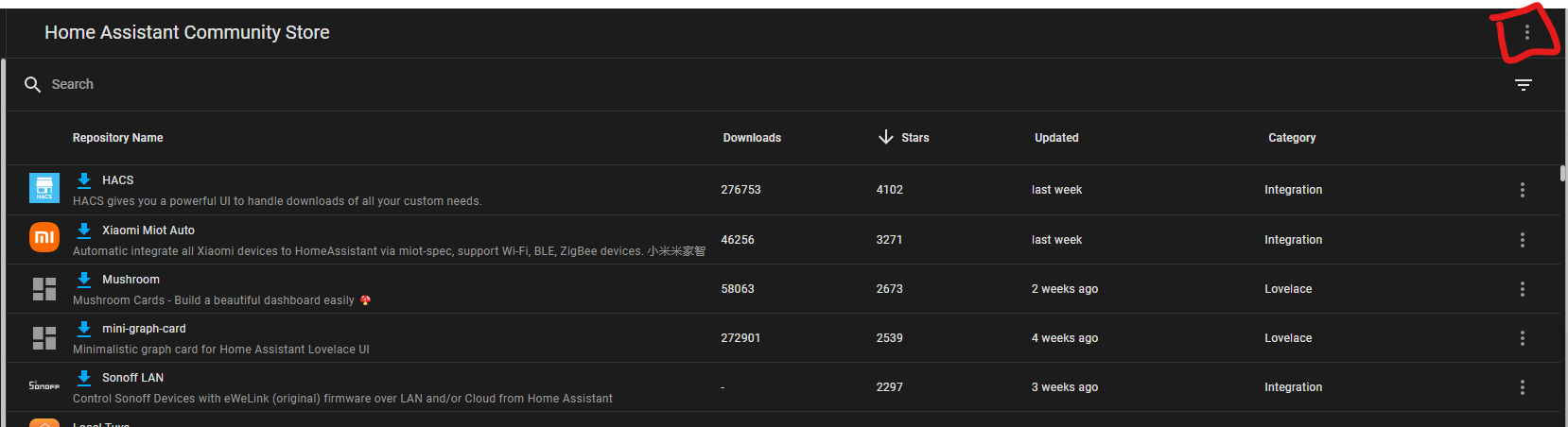
- Click on "Custom Repositories"
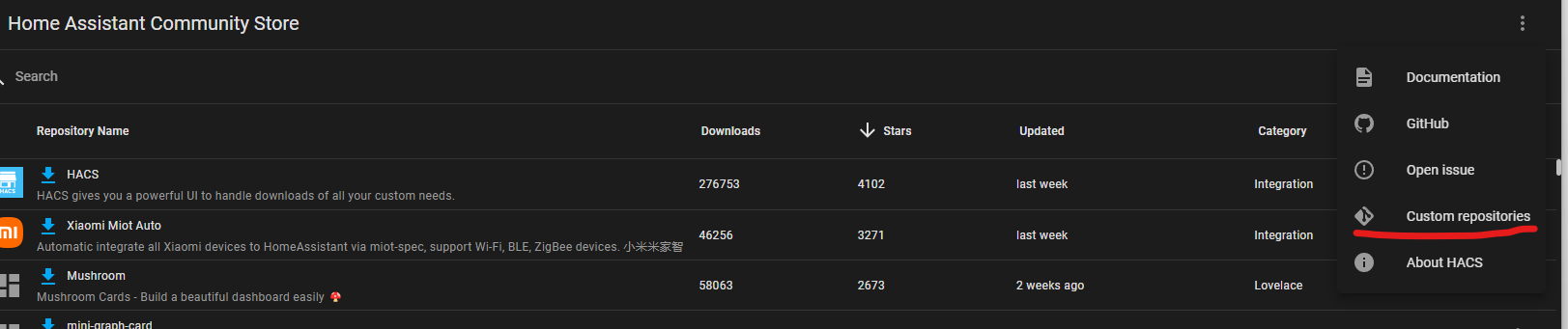
- Fill in the repository "https://github.com/fboundy/solisconnect", and category "Integration"
- Now search for "SolisConnect"
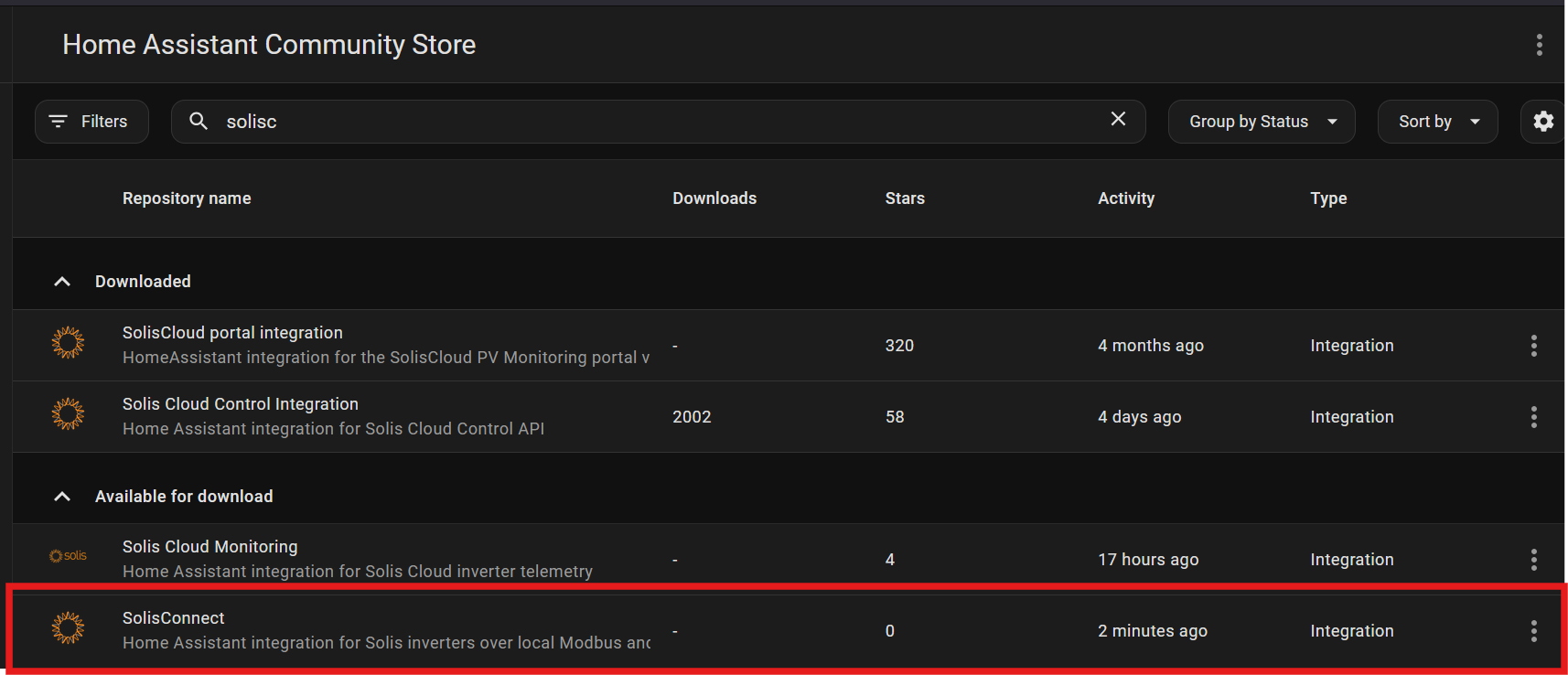
- Click on Download
Whilst the solis inverters do provide total sensors for today, yesterday, month and year. I highly suggest to create a utility meter in HA, as a time difference between HA and Solis might have the values reset before midnight, causing issues in charts.
- Copy
custom_components/solisconnectinto your Home Assistantcustom_componentsfolder. - Restart Home Assistant.
- Add the integration from Settings -> Devices & services.
- Navigate to Settings -> Devices & Services
- Click on "+ Add Integration"
- Search for "SolisConnect"
- Follow the configuration steps:
Connection Type:
- TCP (WiFi Dongle): Use for local Modbus over a data logging stick, WiFi dongle, or Ethernet bridge. Requires host/IP and port. Default port is
502. - Serial (RS485): Use for direct local Modbus over USB-RS485. Requires serial port path and serial settings.
- SolisCloud API: Uses SolisCloud API key credentials. Polling is slower than local Modbus, but works when local Modbus is unavailable.
- Modbus + SolisCloud: Creates one shared device/entity set with either automatic failover or a manual active-protocol selector.
Required fields depend on the protocol:
- Modbus requires inverter model, inverter serial number, slave address, and TCP or serial connection details.
- SolisCloud requires SolisCloud key ID, key secret, plant ID, and either a serial number or enough account metadata for the integration to resolve the inverter from the plant list.
- Dual protocol setup collects Modbus details first, then SolisCloud details, then asks whether failover or manual protocol selection should be used.
| Mode | Sensor polling | Control writes | Notes |
|---|---|---|---|
| TCP/Serial Modbus | Full local register set | Full mapped register writes | Fastest and preferred where local access is reliable. |
| SolisCloud API | Mapped cloud detail fields and verified control CIDs | Verified CIDs only: storage mode, backup SOC, over-discharge SOC, force-charge SOC, feed-in limit, TOU V2 timed slots | Cloud data updates every few minutes. Unmapped cloud-only sensors are marked unavailable instead of showing stale values. |
| Modbus + SolisCloud failover | One protocol polls at a time; automatic switch on health loss | Active protocol first, then healthy backup where possible | Primary can be Modbus or cloud. The standby protocol is idle until needed. |
| Modbus + SolisCloud manual | One protocol polls at a time, selected by the Active Protocol entity | Active protocol first, then healthy backup where possible | Useful for maintenance windows or unreliable network conditions. |
Cloud setup derives the closest supported inverter model from SolisCloud metadata where possible. If SolisCloud identifies the model, that value is used to avoid choosing a sensor map that does not match the inverter.
Home Assistant only allows one iot_class value in the manifest. SolisConnect is marked local_polling because local Modbus is still the primary integration class, even though SolisCloud-only and dual-protocol entries can use a cloud API.
- SolisCloud uses the same entity definitions as Modbus by mapping cloud fields and CIDs into the shared register cache.
- Cloud-only mode currently covers a limited set of inverter detail fields and verified control CIDs for storage mode (
636), backup/reserved SOC (157), over-discharge SOC (158), force-charge SOC (160), feed-in limit (696), and TOU V2 timed slots (5916-5987). - TOU V2 timed-slot CIDs map into the local
43707-43791register model, including the43707slot-enable bitfield and cloud time strings such asHH:MM-HH:MM. Automatic gating from CID6798(0xAA55) is still pending, so unsupported inverters may reject those cloud controls. - Cloud writes read the old CID value, send the control request, update Home Assistant optimistically, then verify after the cloud state catches up. If verification does not match, the integration restores device truth in the cache.
- The SolisCloud API is rate-limited by the integration. Avoid running another cloud integration against the same key if you are seeing slow or failed cloud updates.
- If older debug logs captured SolisCloud credentials before redaction was added, rotate the SolisCloud key secret and clear old logs.
Inverter Serial: (Optional on hybrid Modbus models and SolisCloud; required otherwise)
- Used to generate unique entity IDs and ensure configuration stability — every entry needs one, but you don't always have to type it.
- On Modbus hybrid inverters, you can leave this blank: once connectivity is confirmed, the integration reads the serial directly from the device and uses it (silently correcting a mistyped value too, if you did type one). Grid/string models don't expose this register, so you still need to type it there — if you leave it blank on a grid/string model, the form will ask again.
- On SolisCloud, the serial is optional and auto-resolved when your plant has exactly one inverter; you only need to type it to disambiguate a plant with multiple inverters.
Poll Interval:
- Customize how frequently sensors update. Faster local polling provides more real-time data but increases Modbus load. SolisCloud polling should stay slower because cloud updates and control verification lag behind local reads.
Deprecated Settings:
- Identification: This field has been removed from the setup form. If you previously used it, the integration will still read it internally to migrate your old entities, but it is no longer user-configurable.
Connection Type: S2 is the default Modbus dongle option. Only select Waveshare if you are using a Waveshare device and some sensors are higher than normal. See https://fboundy.github.io/solisconnect/sensors.html#waveshare
Note on entity IDs: SolisConnect uses Home Assistant device-based entity naming, so entity IDs are generated as
<device name>_<entity name>. New installs name the deviceSolis <model>, which produces IDs likesensor.solis_s6_eh1p_battery_power. The examples below assume the device is named justSolis; rename your device or adjust the entity IDs to match your install.

type: custom:sunsynk-power-flow-card
view_layout:
    grid-area: flow
cardstyle: lite
large_font: true
show_solar: true
panel_mode: true
card_height: 415px
inverter:
    model: solis
    modern: false
    colour: "#959595"
    autarky: "no"
solar:
    mppts: 2
    show_daily: false
    colour: "#F4C430"
    animation_speed: 9
    max_power: 9600
    pv1_name: West
    pv2_name: North
battery:
    energy: 14280
    shutdown_soc: 20
    show_daily: true
    colour: pink
    animation_speed: 6
    max_power: 6000
load:
    show_aux: false
    show_daily: true
    animation_speed: 8
    max_power: 6000
    additional_loads: 2
    load2_name: Geyser
    load2_icon: mdi:heating-coil
    load1_name: Pool
    load1_icon: mdi:pool
grid:
    show_daily_buy: true
    no_grid_colour: red
    animation_speed: 8
    max_power: 6000
    invert_grid: true
entities:
    dc_transformer_temp_90: sensor.solis_temperature
    day_battery_charge_70: sensor.solis_today_battery_charge_energy
    day_battery_discharge_71: sensor.solis_today_battery_discharge_energy
    day_load_energy_84: sensor.solis_today_energy_consumption
    day_grid_import_76: sensor.solis_today_energy_imported_from_grid
    day_grid_export_77: sensor.solis_today_energy_fed_into_grid
    day_pv_energy_108: sensor.solis_pv_today_energy_generation
    inverter_voltage_154: sensor.solis_a_phase_voltage
    load_frequency_192: sensor.solis_grid_frequency
    inverter_current_164: sensor.solis_a_phase_current
    inverter_power_175: sensor.solis_backup_load_power
    grid_power_169: sensor.solis_ac_grid_port_power
    battery_voltage_183: sensor.solis_battery_voltage
    battery_soc_184: sensor.solis_battery_soc
    battery_power_190: sensor.solis_battery_power
    battery_current_191: sensor.solis_battery_current
    essential_power: sensor.solis_backup_load_power
    grid_ct_power_172: sensor.solis_meter_total_active_power
    pv1_voltage_109: sensor.solis_pv_voltage_1
    pv1_current_110: sensor.solis_pv_current_1
    pv1_power_186: sensor.solis_pv_power_1
    pv2_power_187: sensor.solis_pv_power_2
    pv_total: sensor.solis_total_pv_power
    pv2_voltage_111: sensor.solis_pv_voltage_2
    pv2_current_112: sensor.solis_pv_current_2
    grid_voltage: sensor.solis_a_phase_voltage
    battery_current_direction: sensor.solis_battery_current_direction
    inverter_status_59: sensor.solis_status_string
    remaining_solar: sensor.solcast_pv_forecast_forecast_remaining_today
type: vertical-stack
cards:
    - type: horizontal-stack
      cards:
          - type: entities
            entities:
                - entity: number.solis_time_charging_charge_current
                  name: Charge Current
            state_color: true
    - type: horizontal-stack
      cards:
          - type: entities
            entities:
                - entity: number.solis_time_charging_discharge_current
                  name: Discharge Current
            state_color: true
    - type: entities
      entities:
          - entity: switch.solis_time_of_use
            type: custom:multiple-entity-row
            name: Charge Slot 1
            toggle: true
            state_header: TOU
            state_color: true
            icon: mdi:timer
            entities:
                - entity: time.solis_time_charging_charge_start_slot_1
                  name: Charge From
                - entity: time.solis_time_charging_charge_end_slot_1
                  name: Charge To
          - entity: switch.solis_time_of_use
            type: custom:multiple-entity-row
            name: Discharge Slot 1
            toggle: true
            state_header: TOU
            state_color: true
            icon: mdi:timer
            entities:
                - entity: time.solis_time_charging_discharge_start_slot_1
                  name: Charge From
                - entity: time.solis_time_charging_discharge_end_slot_1
                  name: Charge To
          - entity: switch.solis_time_of_use
            type: custom:multiple-entity-row
            name: Charge Slot 2
            toggle: true
            state_header: TOU
            state_color: true
            icon: mdi:timer
            entities:
                - entity: time.solis_time_charging_charge_start_slot_2
                  name: Charge From
                - entity: time.solis_time_charging_charge_end_slot_2
                  name: Charge To
          - entity: switch.solis_time_of_use
            type: custom:multiple-entity-row
            name: Discharge Slot 2
            toggle: true
            state_header: TOU
            state_color: true
            icon: mdi:timer
            entities:
                - entity: time.solis_time_charging_discharge_start_slot_2
                  name: Charge From
                - entity: time.solis_time_charging_discharge_end_slot_2
                  name: Charge To
          - entity: switch.solis_time_of_use
            type: custom:multiple-entity-row
            name: Charge Slot 3
            toggle: true
            state_header: TOU
            state_color: true
            icon: mdi:timer
            entities:
                - entity: time.solis_time_charging_charge_start_slot_3
                  name: Charge From
                - entity: time.solis_time_charging_charge_end_slot_3
                  name: Charge To
          - entity: switch.solis_time_of_use
            type: custom:multiple-entity-row
            name: Discharge Slot 3
            toggle: true
            state_header: TOU
            state_color: true
            icon: mdi:timer
            entities:
                - entity: time.solis_time_charging_discharge_start_slot_3
                  name: Charge From
                - entity: time.solis_time_charging_discharge_end_slot_3
                  name: Charge To
      state_color: true
view_layout:
    grid-area: a
Card inspiration from https://github.com/slipx06/Sunsynk-Home-Assistant-Dash
Wifi Dongles Tested
- S2_WL_ST
- Waveshare
Use the Home Assistant UI diagnostics download when reporting SolisConnect setup/runtime issues. The diagnostics output redacts configuration secrets and includes protocol state, active protocol, and cloud mapping counts.
On Home Assistant OS/Supervised systems, live logs are available with:
ha core logsIf a sensor's entity ID changes (e.g., during migration) and you lose its history, you can manually restore it using Home Assistant's statistics tool:
- Navigate to Developer Tools -> Statistics.
- Search for the sensor name (e.g., "Today Battery Charge Energy").
- You will likely see two entries:
- The current sensor (new ID, working).
- The historic sensor (old ID, typically "Status: Recalculate", missing state, or similar issue). Note down it's ID
- Click on the current sensor, click the gear icon, and now rename the "Entity ID" to the old one
Alternatively, this integration makes it much easier https://github.com/mayerwin/HA-Merge-Sensor-History
- Tip: Rename the new device to match your old device's name and select "Recreate Entity IDs" during setup. This will ensure your history and dashboards remain functional. as mentioned here Comment by 0rangutan